Step 4 - Publish & Post Management
Once your workflow is satisfied and published, you can manage, test, and analyze its performance through this comprehensive management interface.
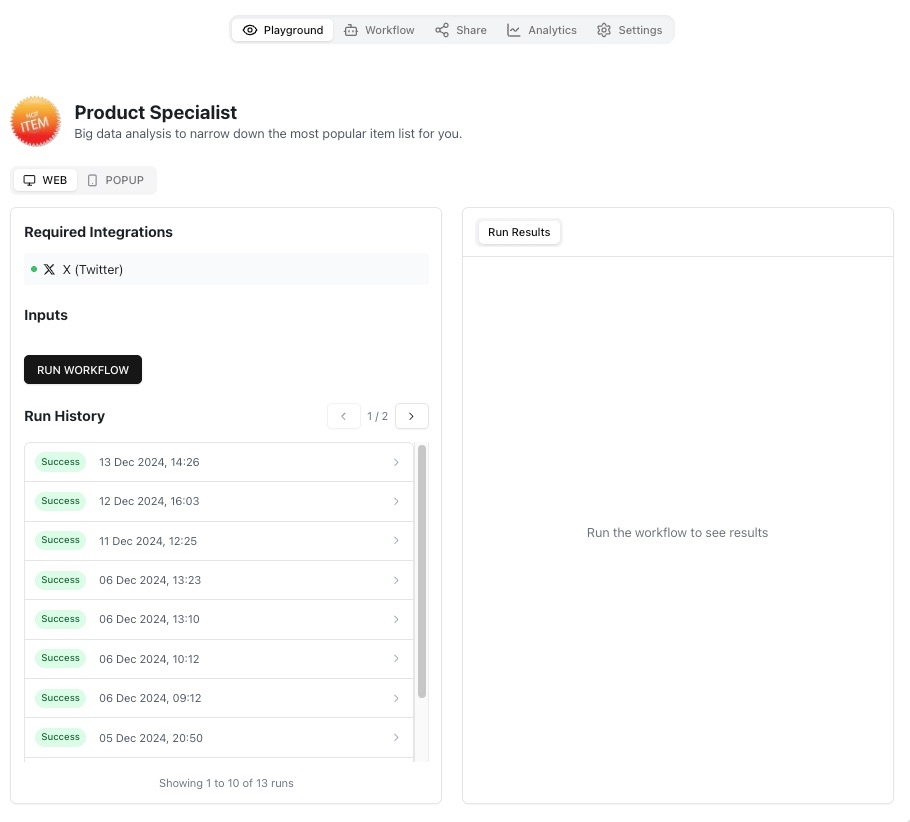
Workflow Overview
Displays the workflow name and description, giving a clear summary of its purpose and capabilities.
Integration types (e.g., Twitter (X)) are listed under Required Integrations, ensuring visibility of the APIs or modules the workflow relies on.
Run Workflow
Use the Run Workflow button to test your workflow manually and view the output in real-time.
This feature ensures that you can verify the workflow's current state and functionality at any time.
Run History
Tracks all executions of the workflow, displaying timestamps and statuses (e.g., Success or Error).
Clicking on any entry in the history provides detailed information about that particular run, including any issues that may have occurred.
Run Results
The Run Results panel on the right displays the output of your workflow tests. This allows you to assess the accuracy and effectiveness of your workflow in real-time.
Navigation
Provides additional management tools:
Playground: Test or refine specific logic within the workflow.
Workflow: Return to the main workflow creation or editing page.
Share: Publish or share the workflow with others.
Analytics: Access detailed data and performance metrics related to workflow usage.
Settings: Adjust workflow configurations, such as access type, profile information, or integrations.
Last updated