Step 5 - Post-Publication Management
Once your chatbot is published, you can manage and optimize it through the following tabs:

5.1 Playground
Test your agent’s performance and responses in real-time. This feature allows you to experiment with various scenarios and fine-tune your bot's behavior.
The Playground offers a versatile space to test and refine your chatbot’s performance. Currently, it supports two modes, with more options being added in the future:
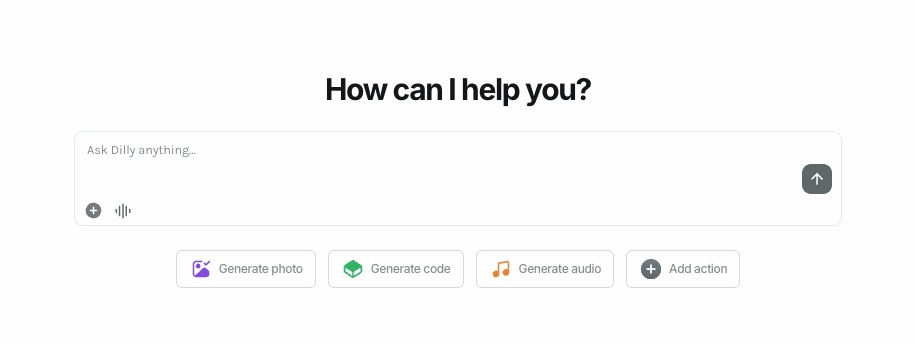
Dialogue Mode
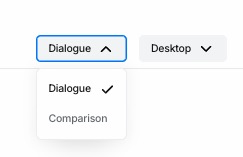
Best suited for traditional chatbot scenarios, such as customer support assistants, educational tools, or conversational AI applications. This mode allows you to simulate and optimize interactions in real-time.
Comparison Mode
The Comparison Mode in the Playground is a powerful tool tailored for advanced use cases, such as code debugging, commenting, and custom file analysis.
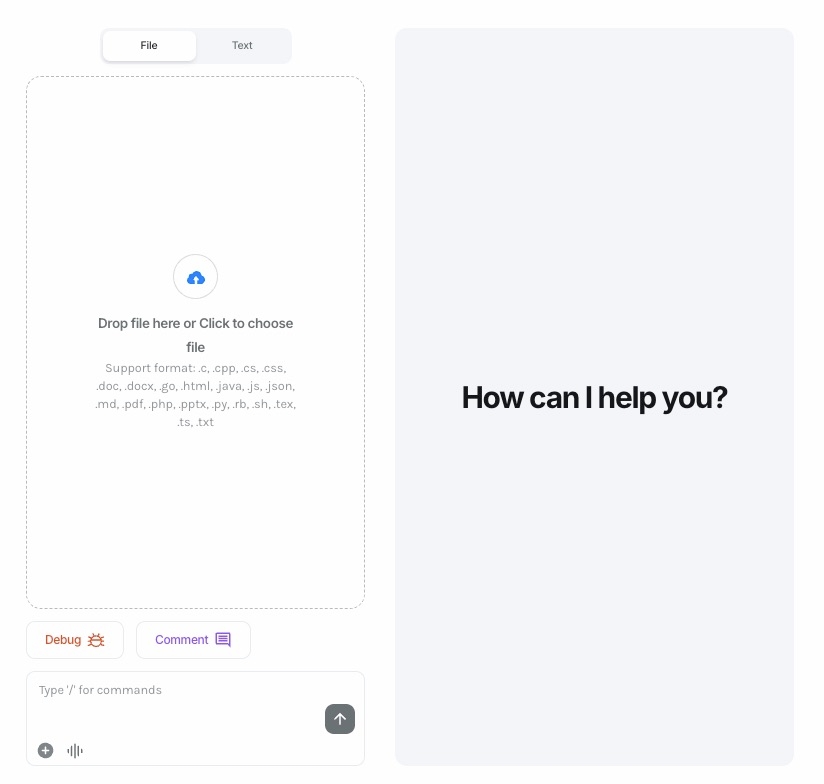
Comment Feature
Using the Comment preset prompt, the bot automatically adds comments to the uploaded code, making it easier to understand and interpret. This feature is especially useful for complex codebases or documentation needs.
Debug Feature
With the Debug preset prompt, the bot reviews the uploaded code for potential errors, logical inconsistencies, or optimization opportunities. It then provides actionable feedback to help you improve the code.
Custom Commands
Users can go beyond the preloaded prompts by typing custom commands in the command box. For example, you can request the bot to refactor code, optimize performance, or explain specific sections of your file.
Versatile Input Options
Upload files in various supported formats, or enter raw text, and specify what action you want the bot to take. This flexibility ensures the tool adapts to a wide range of technical and non-technical needs.
Platform View Options
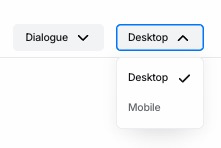
Desktop: Optimized for larger screens, allowing users to preview and test the bot's responses in a desktop environment.
Mobile: Switch to the mobile view to ensure the bot’s performance and design are suitable for smaller screens and on-the-go usage.
5.2 Source
Manage your Knowledge Base files, texts, and website references. Update, add, or remove data sources to ensure your bot stays accurate and up-to-date.
5.3 Settings
Adjust your bot’s profile information, including its name, description, avatar, and other settings. This ensures your chatbot remains aligned with your evolving needs.
5.4 Analytics
Access detailed insights and usage data for your agent. Track user interactions, performance metrics, and analyze how effectively your bot is meeting its goals.
5.5 Subscription
For paid agents, this section lets you manage subscription settings, track revenue, and monitor user access. It’s an essential tool for monetizing your chatbot efficiently.
Last updated